IPTV Not Working? 10 Common Problems & Easy Fixes
IPTV Not Working? 10 Common Problems & Easy Fixes
Introduction
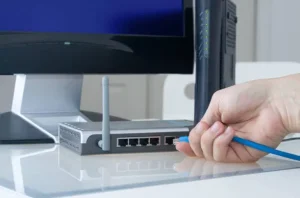
Is your IPTV not working properly? You may be experiencing problems such as channels not loading, login errors, buffering, a blank screen, or an IPTV app that keeps crashing.
These issues can have different causes. Sometimes the problem is your internet connection or device, while in other cases it may be related to the IPTV application or the streaming service itself.
In this guide, we’ll explain the most common IPTV problems and show you practical steps you can try to get your IPTV working again.
1. Check Your Internet Connection
The first thing to check when IPTV is not working is your internet connection.
Open another streaming service or website on the same device and see whether it works normally.
If your internet connection is unstable:
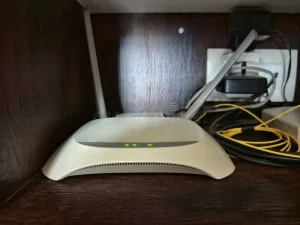
- Restart your router.
- Move closer to the Wi-Fi router.
- Disconnect devices that are using a lot of bandwidth.
- Try Ethernet if your device supports it.
A stable connection is especially important when watching HD or 4K content.
2. Restart Your Device
A simple restart can solve temporary software and connection problems.
Turn off your Firestick, Smart TV, Android TV box, computer, or mobile device, wait a few seconds, and turn it back on.
Then open your IPTV application again.
3. Check Your IPTV Login Details
If your IPTV app opens but your channels do not load, check your account information.
Depending on your service, you may need:
- Username
- Password
- Server URL
- M3U playlist
- Xtream Codes details
Make sure there are no extra spaces or typing mistakes.
If your credentials have expired, contact your IPTV provider.
4. Check Whether Your Subscription Is Active
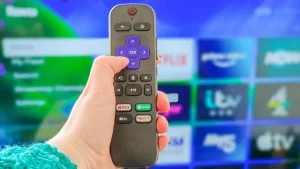
An expired subscription can prevent your channels or on-demand content from loading.
Check your account information or contact your provider to confirm that your subscription is still active.
If everything is active but the service still doesn’t work, continue with the troubleshooting steps below.
5. Restart the IPTV App
Sometimes the IPTV application itself can become temporarily unresponsive.
Close the application completely and open it again.
If your device allows it, you can also force-stop the application before reopening it.

6. Clear the App Cache
Some devices allow you to clear temporary application data.
Clearing the cache can help when an IPTV app becomes slow, freezes, or behaves unexpectedly.
After clearing the cache, reopen the application and sign in again if necessary.
Make sure you know your login details before clearing application data.
7. Update Your IPTV Player
An outdated IPTV application can sometimes cause compatibility or performance problems.
Check whether an update is available through the official app store or the application’s official source.
Keeping your player updated can improve:
- Stability
- Compatibility
- Performance
- Bug fixes
8. Check If Other Channels Work
If one channel isn’t working but other channels play normally, the problem may be limited to that particular stream.
Try several different channels.
If all channels are not working
The issue could be related to your account, application, internet connection, or IPTV service.
If only one or two channels are affected
The issue may be related to those particular streams.
In that situation, contact your IPTV provider and report the affected channels.
9. Check Your Date and Time Settings
Incorrect date and time settings can sometimes cause problems with applications and internet connections.
Make sure your device is using automatic date and time settings where available.
Then restart the IPTV application and try again.
10. Contact Your IPTV Provider
If you’ve tried the steps above and IPTV is still not working, contact your provider.
Give them useful information such as:
- Your device model
- IPTV application name
- The exact error message
- Whether all channels are affected
- When the problem started
Providing these details can help support identify the problem more quickly.
IPTV Not Working on Firestick
If IPTV isn’t working on your Firestick, try these steps:
- Restart the Firestick.
- Restart your router.
- Check your internet connection.
- Clear the IPTV app cache.
- Update the IPTV application.
- Check your subscription credentials.
- Try another supported IPTV player.
For more information, see our IPTV for Firestick guide.
IPTV Not Working on Smart TV
For Samsung, LG, and other Smart TVs, start by checking your internet connection.
Then:
- Restart the TV.
- Restart your router.
- Update the IPTV application.
- Check your login details.
- Try another compatible IPTV player if available.
If other streaming applications work normally but IPTV doesn’t, the problem may be related to the IPTV application or service.
IPTV App Shows a Blank Screen
A blank screen can have several causes.
Try:
- Closing and reopening the app.
- Restarting your device.
- Checking your internet connection.
- Updating the application.
- Re-entering your account information.
If the problem continues, contact your IPTV provider.
IPTV Login Error
If you receive a login error, carefully check your credentials.
Make sure your:
- Username is correct.
- Password is correct.
- Server address is correct.
- Subscription is active.
If you’re copying credentials from an email or message, make sure you haven’t accidentally included extra spaces.
IPTV Channels Are Loading Slowly
Slow channel loading can be caused by network congestion, weak Wi-Fi, device performance, or the streaming service.
Try connecting your device to Ethernet, reducing network traffic, restarting your router, and testing another channel.
For buffering-specific problems, see our guide on How to Fix IPTV Buffering.
How to Prevent IPTV Problems
Once your IPTV is working again, a few simple habits can help prevent future problems.
Keep Your Apps Updated
Install updates when they become available.
Maintain a Stable Internet Connection
Use a reliable Wi-Fi connection or Ethernet whenever possible.
Restart Your Devices
Restarting your router and streaming device occasionally can help resolve temporary issues.
Keep Your Login Details Safe
Store your IPTV credentials somewhere secure so you can easily access them when needed.
Frequently Asked Questions
Why is my IPTV suddenly not working?
The problem could be caused by your internet connection, IPTV application, account credentials, device, or the IPTV service itself.
Why are my IPTV channels not loading?
Check your internet connection, subscription status, login credentials, and IPTV application. If only certain channels are affected, the issue may be limited to those streams.
Should I reinstall my IPTV app?
Reinstalling can help if the application is corrupted or experiencing persistent problems. Before doing so, make sure you have your login information available.
Why does IPTV work on one device but not another?
Different devices and IPTV players can have different compatibility requirements. Check that the application and service support the device you’re using.
What should I do if nothing works?
If you’ve checked your internet connection, restarted your device, updated the application, and verified your credentials, contact your IPTV provider with details about the problem.
Conclusion
When IPTV is not working, don’t immediately assume that the service is down. Start with the basics: check your internet connection, restart your device and router, verify your login details, and make sure your IPTV application is updated.
If only certain channels are affected, the problem may be specific to those streams. If the entire service is unavailable after you’ve completed the troubleshooting steps, contacting your IPTV provider is the best next step.
With a stable connection, supported device, updated IPTV player, and active subscription, most common IPTV problems can be identified and resolved quickly.