IPTV for Firestick: Complete Setup Guide
IPTV for Firestick: Complete Setup Guide
Introduction
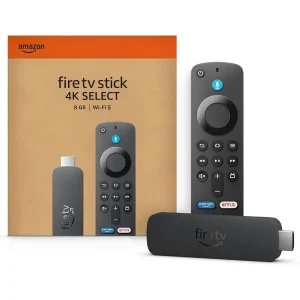
Want to use IPTV on your Firestick?
The setup is usually simple. You need a Firestick, a stable internet connection, a compatible IPTV player, and a valid IPTV playlist or subscription.
In this guide, you’ll learn how to set up IPTV for Firestick, choose a player, add your playlist, and fix common problems.
What Is IPTV on Firestick?
IPTV delivers television content through an internet connection.
A Firestick can run compatible IPTV applications. These apps can connect to your own authorized IPTV playlist or service.
The IPTV player usually does not provide the channels itself. It plays the content supplied by the service or playlist you add.
What You Need Before Starting
Before setting up IPTV, make sure you have:
- An Amazon Fire TV Stick
- A stable internet connection
- A compatible IPTV player
- An M3U playlist or supported login details
- An active and authorized IPTV service
Keep your login details private.
Step 1: Connect Your Firestick
Connect the Firestick to an available HDMI port on your TV.
Turn on the TV and select the correct HDMI input.
Follow the on-screen instructions to connect the Firestick to your Wi-Fi network.
Once you’re connected, you can start setting up your IPTV player.
Step 2: Choose an IPTV Player
You need a compatible player to access your IPTV playlist.
Popular options may include:
- TiviMate
- IPTV Smarters
- VLC on supported devices
- Other compatible IPTV players
The best option depends on your needs and the features supported by your Firestick.
For more information, see our Best IPTV Player guide.
Step 3: Install Your IPTV Player
Open the Fire TV app store.
Search for the IPTV player you want to use.
Then:
- Select the application.
- Choose Get or Install.
- Wait for the installation.
- Open the application.
App availability can vary by device, region, and current Amazon app-store listings.
Always use official or trusted sources.
Step 4: Add Your IPTV Playlist
After opening your IPTV player, look for an option such as Add Playlist.
Your IPTV service may provide an M3U URL or another supported login method.
If you have an M3U URL:
- Select the M3U playlist option.
- Enter your playlist URL.
- Check the information.
- Confirm the playlist.
- Wait for the content to load.
For more information, read our M3U Playlist Guide.
Step 5: Set Up TiviMate on Firestick
TiviMate is designed mainly for Android TV devices and compatible TV platforms.
If the current version is available and compatible with your Firestick, you can use it as an IPTV player.
The basic setup is:
- Install the compatible application.
- Open TiviMate.
- Select Add Playlist.
- Choose the supported playlist method.
- Enter your playlist information.
- Wait for the playlist to load.
For detailed instructions, see our TiviMate Setup Guide.
Step 6: Set Up IPTV Smarters
IPTV Smarters is another IPTV player option for supported devices.
The setup process depends on the current version of the application.
You may be asked to enter information such as:
- Username
- Password
- Server URL
- M3U playlist
Enter the information exactly as provided by your authorized IPTV service.
How to Improve IPTV on Firestick
A good internet connection is important for smooth streaming.
Use a Stable Wi-Fi Connection
Place your Firestick where it can receive a strong Wi-Fi signal.
Avoid placing your router too far away.
Use Ethernet When Possible
Some Firestick setups can use Ethernet through a compatible adapter.
A wired connection can provide more stable network performance.
Restart Your Router
If your IPTV connection becomes unstable, restart your router.
Wait for the internet connection to return before opening your IPTV player again.
Reduce Network Traffic
Other devices can use a large amount of bandwidth.
Pause large downloads and unnecessary streaming while watching IPTV.
IPTV Buffering on Firestick
Buffering can happen for several reasons.
Common causes include:
- Weak Wi-Fi
- Network congestion
- Slow or unstable internet
- Device performance
- Problems with the streaming source
Start by testing your internet connection.
Then restart your router and Firestick.
If possible, try Ethernet.
For more solutions, read our How to Fix IPTV Buffering guide.
IPTV Not Working on Firestick
If IPTV is not working, start with simple checks.
Check Your Internet
Make sure the Firestick is connected to the internet.
Try opening another streaming application.
Check Your Playlist
Make sure your M3U URL or login information is correct.
A small typing error can prevent the playlist from loading.
Restart the IPTV App
Close the IPTV player completely.
Then open it again.
Restart Your Firestick
Restarting the device can fix temporary software problems.
Check Your Subscription
If your IPTV account has expired, your playlist may stop working.
Contact your service provider if you need help with your account.
How to Clear an IPTV App Cache
If an IPTV application becomes slow or stops responding, clearing its cache may help.
On supported Fire TV devices:
- Open Settings.
- Go to Applications.
- Select Manage Installed Applications.
- Choose your IPTV application.
- Select Clear Cache.
The exact menu names can vary by Fire TV software version.
Be careful when selecting Clear Data, as it may remove saved application information.
How to Keep IPTV Running Smoothly
Follow these simple tips:
- Keep your Firestick updated.
- Keep your IPTV player updated.
- Use a stable internet connection.
- Restart the device when necessary.
- Keep your playlist information private.
- Avoid unnecessary background activity.
- Use authorized IPTV services and content.
Can You Use IPTV on Every Firestick?
Compatibility can vary between Fire TV devices and applications.
Before installing an IPTV player, check that the current version supports your Firestick model and software version.
App availability can also vary by region.
Is IPTV Legal on Firestick?
Firestick is simply a streaming device.
IPTV is a technology used to deliver content over the internet.
The legality depends on the content and the rights held by the service providing it.
Always use IPTV services and playlists that you are legally authorized to access.
Frequently Asked Questions
What is the best IPTV player for Firestick?
There is no single best player for everyone.
Your choice depends on the features you need, your Firestick model, and application compatibility.
Can I use an M3U playlist on Firestick?
Yes, if your IPTV player supports M3U playlists.
The exact setup depends on the application you choose.
Why is IPTV buffering on my Firestick?
Buffering can be caused by weak Wi-Fi, network congestion, device performance, or problems with the streaming source.
How can I fix IPTV not working on Firestick?
Check your internet connection, playlist information, application cache, device software, and account status.
Can I use Ethernet with Firestick?
Some Firestick setups support Ethernet through a compatible adapter.
A wired connection can provide a more stable connection than Wi-Fi.
Conclusion
Setting up IPTV for Firestick can be straightforward when you have the right player and a valid playlist.
Start by connecting your Firestick to a stable internet connection. Then install a compatible IPTV player and add your authorized playlist.
If you experience buffering or other problems, check your internet connection first. Restart your router, Firestick, and IPTV application when necessary.
For the best experience, keep your device and applications updated and use IPTV services and content that you are legally authorized to access.