IPTV Smarters Guide: How to Set Up IPTV Smarters
IPTV Smarters Guide: How to Set Up IPTV Smarters

Introduction
IPTV Smarters is a popular IPTV media player that helps users organize and play compatible IPTV content on supported devices.
The app itself does not provide TV channels. You need your own playlist or an authorized IPTV service.
In this guide, you’ll learn what IPTV Smarters is, how it works, how to add an IPTV playlist, and how to fix common problems.
What Is IPTV Smarters?
IPTV Smarters is an IPTV media player designed to work with compatible streaming services and playlists.
Depending on the version and device, it may support features such as:
- Live TV
- Movies
- TV series
- Playlists
- Electronic Program Guide
- Favorites
- Multiple profiles or playlists
Available features can vary between versions and devices.
How Does IPTV Smarters Work?
IPTV Smarters works as a player.
It does not normally provide the streaming content itself.
Instead, you connect the application to an IPTV service or playlist that you are authorized to use.
The basic process is:
- Install a compatible version of the app.
- Open the application.
- Choose a supported login method.
- Enter the information provided by your IPTV service.
- Wait for the content to load.
- Start browsing the available categories.
What Devices Support IPTV Smarters?
Availability can change over time.
Depending on the current version, IPTV Smarters may be available on supported platforms such as:
- Android devices
- Android TV
- Fire TV devices
- Smart TVs
- Other compatible platforms
Always check the official app store or the developer’s current information for your specific device.
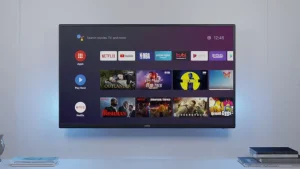
What You Need Before Setup
Before setting up IPTV Smarters, prepare:
- A compatible device
- A stable internet connection
- The IPTV player
- An active IPTV subscription or playlist
- Your login information
If your service provides an M3U playlist, keep the URL available.
You can learn more in our M3U Playlist Guide.
How to Install IPTV Smarters
The installation process depends on your device.
On supported devices, use the official application store whenever possible.
Basic Steps
- Open your device’s app store.
- Search for the compatible IPTV Smarters application.
- Select the correct application.
- Choose Install.
- Wait for the installation.
- Open the application.
App availability may vary by device and region.
How to Add Your IPTV Account
After opening IPTV Smarters, you may see different login options.
The available methods depend on the current version.
Your IPTV service may provide information such as:
- Username
- Password
- Server URL
- M3U playlist
Enter the information exactly as provided.
Check every character before continuing.
How to Add an M3U Playlist
If your service provides an M3U URL, you can use it if the current version of the player supports M3U playlists.
The general process is:
- Open IPTV Smarters.
- Select the playlist option.
- Choose the M3U method.
- Enter your M3U URL.
- Add a playlist name if required.
- Confirm the information.
- Wait for the playlist to load.
Once loaded, your available content should appear in the application.
IPTV Smarters and EPG
EPG stands for Electronic Program Guide.
It can display information about scheduled programs.
Some IPTV services provide EPG information with their playlist or account details.
If your service provides an EPG source, follow its setup instructions.
The available EPG features depend on the player and the service.
How to Organize Channels
Large playlists can contain many channels.
Finding your favorite channels can become difficult without organization.
Depending on the application version, you may be able to use:
- Favorites
- Categories
- Search
- Channel groups
- Recently watched content
Use Favorites for channels you watch often.
This can make navigation much faster.
IPTV Smarters on Firestick
Firestick users can use compatible IPTV players to access their authorized IPTV content.
Before installing IPTV Smarters, check whether the current version is available and compatible with your Fire TV device.
After installation, enter the playlist or login information supplied by your service.
For more information, read our IPTV for Firestick guide.
IPTV Smarters on Android TV
Android TV is another popular platform for IPTV players.
If IPTV Smarters is available for your device, install the compatible version from an official source.
Then add your IPTV playlist or supported login details.
For more information, see our IPTV for Android TV guide.
IPTV Smarters Buffering Problems
Buffering can happen even when the IPTV player is working correctly.
Possible causes include:
- Weak Wi-Fi
- Slow internet
- Network congestion
- Device performance
- Problems with the streaming source
Start by checking your internet connection.
Then restart your router and device.
If possible, try a wired connection on a supported device.
For more tips, read our How to Fix IPTV Buffering guide.
IPTV Smarters Not Working
If IPTV Smarters stops working, start with simple checks.
Check Your Internet
Open another application to make sure your internet connection is working.
Check Your Login Details
Make sure your username, password, or playlist URL is correct.
Restart the App
Close the application completely.
Then open it again.
Restart Your Device
A device restart can fix temporary problems.
Check Your Subscription
If your IPTV account has expired, the content may no longer load.
Contact the service that provided your account if you need help.
Channels Are Missing
Sometimes the playlist loads but some channels are unavailable.
This can happen if:
- The channel was removed.
- The source is temporarily unavailable.
- The playlist needs to be refreshed.
- Your subscription does not include the channel.
Check your account and playlist information first.
EPG Is Not Showing
If your channels appear but the program guide is empty, check your EPG settings.
Make sure the EPG information is correct.
Then refresh the guide if the application provides that option.
The problem can also come from the IPTV service supplying the EPG data.
Tips for a Better IPTV Experience
Follow these simple tips:
- Use a stable internet connection.
- Keep your device updated.
- Keep your IPTV player updated.
- Check your playlist regularly.
- Use Favorites to organize channels.
- Restart the application when needed.
- Keep your login information private.
Is IPTV Smarters an IPTV Service?
No.
IPTV Smarters is a media player.
It does not automatically provide TV channels or subscriptions.
You need a compatible IPTV service or playlist to use the player.
Always make sure you have permission to access the content you stream.
Is IPTV Smarters Free?
The availability, features, and pricing can vary depending on the current version and platform.
Some versions or features may require payment.
Check the official source for the latest information before installing or purchasing anything.
Frequently Asked Questions
What is IPTV Smarters?
IPTV Smarters is a media player that can organize and play compatible IPTV content from a service or playlist.
Can I use IPTV Smarters with an M3U playlist?
Yes, if the current version supports M3U playlists. The exact setup depends on the application.
Can I use IPTV Smarters on Firestick?
If a compatible version is currently available for your Fire TV device, you can use it as an IPTV player.
Can I use IPTV Smarters on Android TV?
Compatible versions may be available for Android TV devices. Check the current application listing for compatibility.
Why is IPTV Smarters buffering?
Buffering can be caused by your internet connection, device performance, network congestion, or the streaming source.
Why are my channels not loading?
Check your internet connection, playlist URL, login details, and subscription status.
Does IPTV Smarters provide channels?
No. It is a media player. You need your own authorized IPTV service or playlist.
Conclusion
IPTV Smarters can be a convenient option for users who want to organize compatible IPTV content in one application.
The basic setup involves installing a compatible version, adding your IPTV account or playlist, and organizing your channels.
If you experience problems, start with your internet connection and login information. Then restart the application and device.
For the best experience, keep your software updated and use IPTV services and content that you are legally authorized to access.