How to Fix IPTV Buffering: 10 Easy Solutions
How to Fix IPTV Buffering: 10 Easy Solutions
Introduction
IPTV buffering can be frustrating, especially when you’re watching live TV, sports, movies, or your favorite TV shows. A video that constantly pauses or takes time to load can quickly ruin the viewing experience.
The good news is that IPTV buffering is often caused by common issues that can be fixed with a few simple steps.
In this guide, we’ll explain how to fix IPTV buffering and improve your streaming experience.
What Causes IPTV Buffering?
Buffering happens when your device cannot receive video data quickly enough to continue playback smoothly.
Some common causes include:
- Slow internet connection
- Unstable Wi-Fi
- Network congestion
- Weak Wi-Fi signal
- Overloaded streaming device
- Outdated IPTV application
- Problems with the IPTV service
- Poor-quality streaming source
Identifying the cause can help you find the right solution.
1. Check Your Internet Connection
The first thing to check is your internet connection.
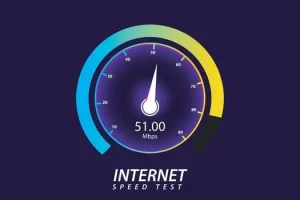
Run a speed test on the device you’re using for IPTV. If your connection is slow or unstable, you may experience buffering.
For better streaming, make sure your connection is fast enough for the video quality you’re watching.
If possible, avoid downloading large files or streaming multiple videos at the same time.
2. Restart Your Router
Sometimes a simple router restart can improve your connection.
To restart your router:
- Turn off your router.
- Wait about 30 seconds.
- Turn it back on.
- Wait for the internet connection to return.
- Try streaming IPTV again.
This can help resolve temporary network issues.
3. Use Ethernet Instead of Wi-Fi
If your streaming device supports an Ethernet connection, consider connecting it directly to your router.
Ethernet can provide a more stable connection than Wi-Fi, especially when streaming high-quality video.
This can be particularly useful for:
- Smart TVs
- Firestick setups with Ethernet adapters
- Android TV boxes
- Desktop computers
4. Improve Your Wi-Fi Signal
If you’re using Wi-Fi, make sure your streaming device is not too far from the router.
Try to:
- Move your router closer to the device.
- Remove obstacles between the router and device.
- Avoid placing the router inside cabinets.
- Use a modern Wi-Fi router.
A stronger Wi-Fi signal can help reduce interruptions.
5. Reduce Network Traffic
Multiple devices using the same network can affect streaming performance.
For example, if someone is:
- Downloading large files
- Playing online games
- Streaming 4K video
- Uploading large files
Your IPTV stream may receive less available bandwidth.
Try disconnecting unnecessary devices or pausing heavy downloads while watching IPTV.
6. Restart Your Streaming Device
Your Firestick, Smart TV, Android TV box, or computer may occasionally experience performance issues.
Restarting the device can clear temporary problems and free up system resources.
After restarting, open your IPTV application and check whether the buffering has improved.
7. Clear the IPTV App Cache
Some devices allow you to clear the cache of installed applications.
Over time, temporary files can build up and affect application performance.
If your device provides a cache-clearing option, try clearing the IPTV app cache and then restart the application.
Be careful not to delete important account information unless you know your login details.
8. Update Your IPTV App
Using an outdated IPTV player can sometimes cause compatibility or performance issues.
Check whether an update is available for your IPTV application.
Keeping the app updated can help improve:
- Performance
- Stability
- Compatibility
- Bug fixes
Always download updates from official or trusted sources.
9. Try Lower Video Quality
If you’re experiencing buffering while watching HD or 4K content, your internet connection may not be able to handle the required bandwidth consistently.
Try switching to a lower video quality if your IPTV service or player provides that option.
For example, you could try:
- 4K → Full HD
- Full HD → HD
If the lower quality stream works smoothly, your connection or network may be the limiting factor.
10. Contact Your IPTV Provider
If you’ve tried everything and buffering continues, the issue may not be on your side.
There could be a temporary problem with the IPTV service or a specific stream.
Contact your provider’s customer support and explain:
- Which channel is buffering
- When the problem started
- Which device you’re using
- Whether other channels work normally
This information can help the provider identify the problem.
How to Prevent IPTV Buffering
Once you’ve fixed the issue, you can take steps to prevent it from happening again.
Use a Stable Internet Connection
A reliable connection is more important than simply having a high download speed.
Keep Your Device Updated
Update your streaming device and IPTV player when updates are available.
Avoid Heavy Network Usage
Try not to download large files while streaming.
Use Ethernet When Possible
A wired connection can provide better stability for compatible devices.
Restart Your Equipment
Restarting your router and streaming device occasionally can help maintain good performance.
When Is the Problem Not Your Internet?
Sometimes buffering can happen even when your internet connection is working perfectly.
If:
- YouTube works normally
- Netflix works normally
- Other streaming apps work normally
- Your internet speed is good
- Only one IPTV channel buffers
The issue may be related to that particular stream or the IPTV provider.
In this situation, contact your provider rather than repeatedly changing your internet settings.
Frequently Asked Questions
Why does my IPTV keep buffering?
IPTV buffering can be caused by slow or unstable internet, weak Wi-Fi, network congestion, device performance, outdated applications, or problems with the streaming service.
Does faster internet stop IPTV buffering?
A faster connection can help, but stability is also important. A high-speed connection that frequently drops or fluctuates may still cause buffering.
Is Ethernet better than Wi-Fi for IPTV?
Ethernet is often more stable because it avoids wireless interference. If your device supports Ethernet, it can be a good option for improving connection stability.
Why does only one IPTV channel buffer?
If only one channel buffers while others work normally, the problem may be related to that specific stream rather than your internet connection.
Can restarting my router fix IPTV buffering?
Yes. Restarting your router can sometimes resolve temporary network problems and improve connection stability.
Conclusion
If you’re wondering how to fix IPTV buffering, start by checking your internet connection and restarting your router and streaming device. Improving your Wi-Fi signal, using Ethernet, reducing network traffic, updating your IPTV player, and lowering video quality can also help.