IPTV for Smart TV: Complete Setup & Streaming Guide
IPTV for Smart TV: Complete Setup & Streaming Guide
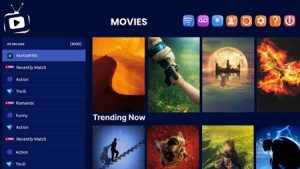
If you are looking for IPTV for Smart TV, the setup can be relatively simple once you understand which app, playlist, and settings you need. Smart TVs can provide a convenient way to watch compatible IPTV content without always needing an additional streaming device.
In this guide, we will explain how IPTV works on Smart TVs, what you need before starting, how to choose a compatible IPTV player, and how to troubleshoot common streaming problems.
What Is IPTV for Smart TV?
IPTV delivers television content through an internet connection instead of traditional cable or satellite broadcasting.
With a compatible Smart TV and IPTV player, you can access authorized IPTV streams or playlists directly from your television.
Depending on the service and player, available features may include:
- Live TV
- Video on demand
- Electronic Program Guide (EPG)
- M3U playlist support
- Favorites
- Multiple playlists
- Parental controls
The exact features depend on the IPTV service, player, and Smart TV model.
Which Smart TVs Support IPTV?
IPTV can work on many modern Smart TV platforms, but compatibility depends on the television and the application you want to use.
Common Smart TV platforms include:
- Samsung Smart TV
- LG Smart TV
- Android TV
- Google TV
- Other compatible Smart TV platforms
Before installing anything, check whether your specific TV model supports the IPTV player you plan to use.
What Do You Need to Use IPTV on a Smart TV?
Before starting your setup, make sure you have:
- A compatible Smart TV.
- A stable internet connection.
- An IPTV service with authorized content.
- A compatible IPTV player.
- Your login details or playlist information.
Once these are ready, you can start configuring your TV.
How to Set Up IPTV on Smart TV
The exact steps can vary depending on your television and IPTV player.
However, the general process is usually straightforward.
Step 1: Connect Your Smart TV to the Internet
First, connect your television to your home network.
You can normally use either:
- Wi-Fi
- Ethernet
Ethernet can provide a more consistent connection, while Wi-Fi is more convenient for many home setups.
Step 2: Open Your TV’s App Store
Go to the application store available on your Smart TV.
Search for a compatible IPTV player and check its compatibility with your TV model.
Different television platforms may have different applications available.
Step 3: Install a Compatible IPTV Player
Choose an IPTV player that supports your device and the playlist or login method provided by your authorized service.
Some players support features such as M3U playlists, EPG, favorites, and multiple profiles.
Step 4: Add Your IPTV Information
After installing the player, open it and follow its instructions.
Depending on the application, you may need to enter:
- Username
- Password
- Server information
- M3U playlist
- EPG information
Only use login or playlist information supplied by a service you are authorized to use.
Step 5: Configure the EPG
If your IPTV service provides an Electronic Program Guide, you may be able to add it to your player.
An EPG can make it easier to see program information and navigate available channels.
Step 6: Test Your Streams
After completing the setup, test several streams.
Check:
- Picture quality
- Audio
- Loading time
- Channel switching
- Buffering
- EPG information
If everything works correctly, your basic setup is complete.
IPTV for Samsung Smart TV
Samsung Smart TVs use their own application ecosystem, so IPTV player availability can depend on the TV model and operating system.
Before installing an application, check:
- TV model
- Operating system
- Application compatibility
- Player requirements
- Supported playlist formats
If a particular IPTV player is not available on your Samsung TV, you may need to use another compatible player or an external streaming device.
IPTV for LG Smart TV
LG Smart TVs also have their own application platform.
The process is similar:
- Connect the TV to the internet.
- Open the LG app store.
- Find a compatible IPTV player.
- Install the application.
- Add your authorized IPTV information.
- Configure available features.
- Test the streams.
Always check application compatibility with your specific LG model.
IPTV for Android TV
Android TV can offer more flexibility because there are many compatible IPTV applications available.
Depending on the player, you may be able to use:
- M3U playlists
- EPG
- Favorites
- Multiple playlists
- External players
- Different playback settings
You can also check our guide to Best IPTV for Android TV for more information.
IPTV Player vs IPTV Subscription
It is important to understand the difference between an IPTV player and an IPTV subscription.
An IPTV player is an application used to play compatible streams or playlists.
An IPTV subscription is the service that provides access to authorized content or stream information.
They are not necessarily the same thing.
For more information, check our IPTV Subscription Guide.
How Much Internet Speed Do You Need?
Your internet connection has a direct impact on streaming performance.
The exact requirement depends on the resolution, stream quality, network conditions, and number of devices using your connection.
For a smoother experience:
- Use a stable internet connection.
- Use Ethernet when possible.
- Avoid heavy downloads while streaming.
- Keep your router in a good location.
- Reduce unnecessary devices using the network.
A fast connection can still experience problems if the Wi-Fi signal is weak or the network is heavily congested.
How to Fix IPTV Buffering on Smart TV
Buffering is one of the most common IPTV problems.
Possible causes include:
- Weak Wi-Fi
- Network congestion
- Slow internet
- Router problems
- TV performance
- Player issues
- Problems with the stream itself
Try these basic solutions:
- Restart your Smart TV.
- Restart your router.
- Test your internet connection.
- Move closer to the router if using Wi-Fi.
- Use Ethernet if available.
- Close unnecessary applications.
- Update the IPTV player.
- Test another authorized stream.
For more troubleshooting ideas, read our IPTV Buffering Fix Guide.
Can You Use IPTV Without a Firestick?
Yes.
If your Smart TV supports a compatible IPTV player, you may not need a Firestick or another external streaming device.
However, an external device can be useful when:
- Your TV does not support the required application.
- Your TV is older.
- You want a different IPTV player.
- You want a more flexible streaming setup.
You can compare this with our IPTV for Firestick guide.
Smart TV IPTV Features to Look For
When choosing an IPTV player, useful features may include:
| Feature | Why It Matters |
|---|---|
| M3U support | Useful for compatible playlists |
| EPG | Displays program information |
| Favorites | Easier access to preferred channels |
| Search | Quickly find content |
| Multiple playlists | Useful for different sources |
| Parental controls | Additional control over viewing |
| Simple interface | Easier TV navigation |
You do not necessarily need every feature. Choose the player based on how you plan to use it.
Common IPTV Setup Problems
IPTV App Does Not Appear
The application may not be available for your specific TV platform or region.
Check your TV’s app store and confirm compatibility with your model.
Playlist Is Not Loading
Check that the playlist or login information was entered correctly.
Also make sure the information is still valid and comes from your authorized IPTV provider.
Channels Keep Buffering
Check your internet connection first.
If your network is stable, test another stream and check whether the issue is specific to one source.
EPG Is Not Showing
Check whether your IPTV service provides EPG information and whether it has been configured correctly in your player.
IPTV Player Crashes
Try restarting the TV and updating the application.
If the problem continues, check whether the player is compatible with your TV model.
Is IPTV Legal on Smart TV?
IPTV itself is a technology for delivering content over the internet.
The legality depends on the content being accessed and whether the provider has the necessary rights or authorization.
For this reason, use IPTV services and content that you are legally authorized to access.
Frequently Asked Questions
Can I use IPTV directly on my Smart TV?
Yes, if your Smart TV supports a compatible IPTV player and the required playlist or login method.
Do I need a Firestick for IPTV?
No. A Firestick is not always necessary. A compatible Smart TV can sometimes run an IPTV player directly.
Does IPTV work on Samsung Smart TV?
It can, depending on the TV model, operating system, and availability of compatible applications.
Does IPTV work on LG Smart TV?
Yes, compatible IPTV applications can work on supported LG Smart TVs.
Why is IPTV buffering on my Smart TV?
Buffering can be caused by your internet connection, Wi-Fi signal, network congestion, device performance, player issues, or the stream itself.
Can I use IPTV on Android TV?
Yes. Android TV supports many IPTV players and can provide features such as playlists and EPG.
Final Thoughts
Using IPTV for Smart TV can be a convenient way to access compatible streaming content without necessarily relying on an external device.
Before getting started, check your TV’s compatibility, choose a suitable IPTV player, make sure your internet connection is stable, and use authorized content.
If you experience problems, start with the basics: check your connection, restart your router and TV, update the application, and verify your IPTV information.