How to Install IPTV Smarters Pro on Firestick (2026 Guide)
How to Install IPTV Smarters Pro on Firestick (2026 Guide)
Introduction
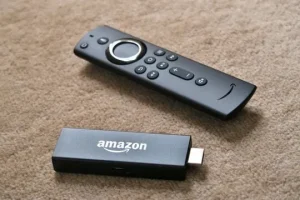
Amazon Firestick is one of the most popular streaming devices thanks to its affordability, ease of use, and support for a wide range of entertainment apps. If you have IPTV service credentials, installing a compatible IPTV player on your Firestick allows you to access your subscription from one convenient interface.
This guide explains the general installation process for IPTV Smarters Pro on Firestick and the steps needed to configure it using the login information provided by your IPTV service.
What Is IPTV Smarters Pro?
IPTV Smarters Pro is an IPTV player application. It is designed to organize and play content from an IPTV subscription.
The application itself does not include TV channels or movies. Instead, users sign in with credentials supplied by their IPTV provider.
Some common features include:
- Live TV support
- Movies and TV series library
- Electronic Program Guide (EPG)
- Favorites
- Search
- Multi-screen support (depending on the version)
Before You Start
Before beginning, make sure you have:
- A Firestick connected to your TV
- A stable internet connection
- An IPTV subscription
- Your login details (username, password, and server URL if required)
Step 1: Prepare Your Firestick
Turn on your Firestick and make sure it is connected to the internet.
Check for available Fire OS updates to ensure the device is running smoothly.
Step 2: Install IPTV Smarters Pro
Install IPTV Smarters Pro using the installation method supported for your device and region.
Once the installation is complete, open the application.
Step 3: Log In
Choose the login method supported by your IPTV service.
Enter the credentials provided with your subscription, such as:
- Username
- Password
- Server URL (if applicable)
Double-check your information before continuing.
Step 4: Wait for Content to Load
After logging in successfully, the application will synchronize your available content.
Depending on your subscription, you may see:
- Live TV channels
- Movies
- TV series
- TV guide (EPG)
The loading process may take a few moments.
Step 5: Start Watching
After synchronization is complete, browse the available categories and enjoy your content.
You can also create favorites and organize channels for quicker access.
Tips for Better Performance
For the best streaming experience:
- Use a fast and stable internet connection.
- Connect through Ethernet if your setup supports it.
- Restart your Firestick occasionally.
- Keep your IPTV player updated.
- Close unnecessary background apps.
Common Questions
Is IPTV Smarters Pro free?
The availability of free and premium features depends on the version of the application.
Does IPTV Smarters Pro include channels?
No. It is only a media player. Content comes from your IPTV subscription.
Can I use IPTV Smarters Pro on devices other than Firestick?
Yes. Versions are available for several supported platforms, depending on the developer.
Why are my channels not loading?
This can happen if your login information is incorrect, your subscription has expired, or there is a temporary network issue.
Conclusion
Installing IPTV Smarters Pro on Firestick is a straightforward process. Once the application is installed and your subscription credentials are entered correctly, you can enjoy live TV, movies, and other supported content through a single interface.