IPTV Setup on LG Smart TV: Complete Step-by-Step Guide for 2026
Setting up IPTV on an LG Smart TV is easier than ever. With the right IPTV player and a stable internet connection, you can enjoy live TV, sports, movies, and on-demand content directly on your television without needing additional hardware.
In this guide, you’ll learn exactly how to complete your IPTV setup on LG Smart TV in just a few simple steps.
What Do You Need Before Setting Up IPTV?
Before you begin, make sure you have the following:
- An LG Smart TV connected to the internet
- An active IPTV subscription
- IPTV login details (M3U URL or Xtream Codes)
- Access to the LG Content Store
- A stable internet connection
Once you have everything ready, you can start the installation process.
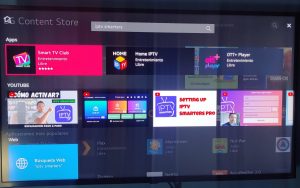
Step 1: Open the LG Content Store
On your LG Smart TV:
- Press the Home button on your remote.
- Open the LG Content Store.
- Use the search feature to find an IPTV application.
Popular IPTV apps for LG Smart TVs include:
- IPTV Smarters Pro
- Smart IPTV
- IBO Player
- Flix IPTV
- HOT IPTV
Download and install your preferred application.
Step 2: Install the IPTV Application
After selecting your IPTV app:
- Click Install.
- Wait for the installation to finish.
- Launch the app from your TV’s home screen.
Installation usually takes only a few minutes.
Step 3: Add Your IPTV Subscription
Most IPTV applications support one of the following methods:
Method 1: M3U Playlist URL
Enter the M3U playlist URL provided by your IPTV provider.
Method 2: Xtream Codes API
Enter:
- Username
- Password
- Server URL
After entering your details, select Login or Add User.
The application will automatically load channels and available content.
Step 4: Enjoy Your IPTV Content
Once your playlist has loaded, you can start watching:
- Live TV channels
- Sports events
- Movies
- TV series
- International channels
Many IPTV apps also include features such as favorites, parental controls, and Electronic Program Guides (EPG).
Best IPTV Apps for LG Smart TV
Choosing the right player can improve your viewing experience.
IPTV Smarters Pro
A popular application with an easy-to-use interface and support for multiple playlists.
Smart IPTV
One of the oldest IPTV apps available for Smart TVs.
IBO Player
Known for its modern design and excellent performance.
Flix IPTV
Offers advanced features, subtitles, and parental controls.
Troubleshooting IPTV on LG Smart TV
If you encounter issues during setup, try these solutions.
- IPTV Channels Not Loading
- Check your internet connection.
- Verify your login details.
- Restart the IPTV application.
Buffering Issues
- Use a faster internet connection.
- Restart your router.
- Close unused applications.
- App Not Working
- Update the application.
- Reinstall the IPTV player.
- Restart your LG Smart TV.
Looking for a Reliable IPTV Service?
To enjoy a seamless IPTV experience on your LG Smart TV, consider using a reliable provider like Beast TV.
Visit Beast TV at:
Beast TV Official Website
Enjoy live sports, entertainment, movies, and much more on your LG Smart TV.
Final Thoughts
Completing an IPTV setup on LG Smart TV is simple and only takes a few minutes. By choosing the right IPTV player and using a reliable IPTV provider, you can enjoy a smooth and enjoyable streaming experience right from your living room.